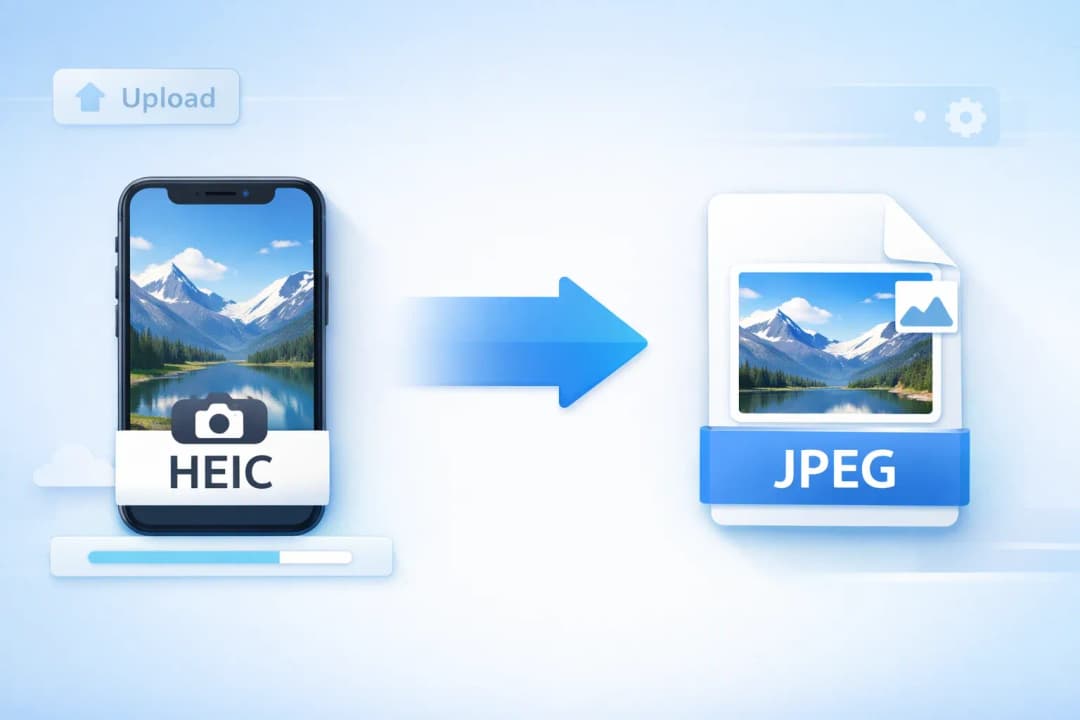
What Is HEIC and Why Convert HEIC to JPEG?
HEIC to JPEG conversion is one of the most common tasks for iPhone users. HEIC — short for High Efficiency Image Container — is the default photo format Apple introduced in iOS 11. It stores images using HEVC compression, delivering roughly 50% smaller file sizes compared to JPEG while preserving the same visual quality. Every photo your iPhone takes is saved as a heic to jpeg-ready HEIC file unless you manually change the camera settings.
Understanding the HEIC Format
The HEIC format supports features that JPEG simply cannot match: transparency layers, image sequences, Live Photos, and depth maps. Developed by the MPEG group and adopted by Apple as the primary iPhone photo format, HEIC achieves exceptional compression efficiency. Despite these advantages, the demand to convert heic to jpeg remains enormous because most of the world's systems — Windows PCs, Android phones, web browsers, and email clients — do not natively open HEIC files.
Why HEIC Files Need Conversion to JPEG
When you try to share a heic file to jpeg conversion becomes necessary the moment you send photos to someone not on an Apple device. A Windows user receives a .heic attachment and cannot open it. An Android contact sees a blank thumbnail. A website upload form rejects the file. The simplest fix in every case is to change heic to jpeg before sharing. JPEG has been the universal image format since the early 1990s and is accepted everywhere — from email clients and social networks to document editors and CMS platforms.
How to Convert HEIC to JPEG Online
TinyImagePro makes the process to convert heic to jpeg as simple as three steps. The entire conversion runs inside your browser — nothing is uploaded to a server, and no personal data is collected.
Upload your HEIC files
Drag and drop your .heic or .heif files onto the converter, or click to browse. Up to 20 files are supported in one batch.
Choose output quality
Adjust the quality slider (default: 92%) to balance file size and visual quality. For most uses, the default produces excellent JPEG results.
Convert and download
Click Convert, wait a few seconds, then download each JPEG individually or grab all files as a ZIP archive.
The default quality of 92% is the sweet spot for most heic to jpeg conversions. It produces JPEG files with virtually no visible quality loss compared to the original HEIC. Lower the slider only if you need smaller file sizes for email or web upload limits.
Batch Convert Multiple HEIC Files to JPEG
Batch conversion is essential when you want to convert heic to jpeg for an entire album or a set of photos from a trip. TinyImagePro allows you to upload up to 20 HEIC files at once. All files are converted to JPEG in sequence, and a single click downloads them as a ZIP archive. This is far faster than converting heic to jpegs one at a time using desktop software or online tools that process files individually.
HEIC vs JPEG — Key Technical Differences
When you convert heic to jpeg, you are making a trade-off: you gain universal compatibility at the cost of slightly larger files. Here is a quick summary of the most important differences between the two formats.
File Size and Compression Efficiency
A typical iPhone photo saved as HEIC is around 2–4 MB. The same image after heic to jpeg conversion at high quality is typically 4–7 MB — roughly double the size. This is the main reason Apple switched to HEIC: it lets iPhones store twice as many photos without sacrificing quality. For long-term phone storage, HEIC wins. For sharing and compatibility, heic file to jpeg conversion is the right choice.
Compatibility and Platform Support
JPEG is supported by literally every device and application ever made that handles images. HEIC to jpeg conversion eliminates all compatibility worries in a single step. After conversion, your photos open on any Windows PC, Android phone, web browser, or email client without plugins or workarounds. The table below shows exactly where HEIC struggles and where JPEG succeeds:
| Platform | HEIC View | HEIC Edit | JPEG View | JPEG Edit |
|---|---|---|---|---|
| 🍎iOS / macOS | Full | Full | Full | Full |
| 🪟Windows 10/11 | Partial | Partial | Full | Full |
| 🤖Android | Partial | None | Full | Full |
| 🐧Linux | None | None | Full | Full |
| 🌐Chrome / Edge | None | None | Full | Full |
| 🦊Firefox | None | None | Full | Full |
| 📧Email Clients | None | None | Full | Full |
| 📱Social Media | Partial | None | Full | Full |
* Windows requires "HEIF Image Extensions" from the Microsoft Store for partial HEIC support. Converting HEIC to JPEG eliminates compatibility issues across all platforms.
When and Where You Need to Convert HEIC to JPEG
Sharing iPhone Photos on Windows and Android
The most common reason to do a heic to jpeg conversion is cross-platform sharing. If you email a HEIC photo to a Windows colleague, they cannot open it without installing the Microsoft HEIF Image Extensions add-on — a step most people skip. If you send it via a messaging app to an Android user, many apps simply will not display it. Converting heic into jpeg before sending means your photos always arrive ready to view, no matter what device the recipient uses.
Uploading to Websites, Forms, and Social Media
Most web platforms and content management systems do not accept HEIC uploads. Government forms, job application portals, e-commerce product image uploads, and social media sites expect JPEG or PNG. Performing a convert heic to jpeg step before uploading eliminates rejection errors. Social platforms like Instagram, Twitter, and LinkedIn display JPEG photos correctly across all devices, while HEIC uploads may be auto-converted inconsistently or rejected outright.
If your iPhone keeps saving photos as HEIC, go to Settings → Camera → Formats and switch to Most Compatible. This makes future photos save as JPEG natively. For existing HEIC photos, use our free heic to jpeg converter above.
How to Convert HEIC to JPEG on Different Platforms
HEIC to JPEG on Windows
Windows does not open HEIC files by default. To view them, you need to install the "HEIF Image Extensions" from the Microsoft Store — and even then, editing support is limited. For Windows users who regularly receive iPhone photos, the easiest path is to use an online heic to jpeg converter like TinyImagePro. Upload your files, convert, and save JPEG files that open in any Windows application — Photos, Paint, Photoshop, or Microsoft Office.
HEIC to JPEG on Mac
macOS can open HEIC files natively in Preview and Photos. However, if you need to export or share photos as JPEG, you still need a heic to jpeg conversion step. In Preview, you can export a HEIC file to JPEG via File → Export. For batch exports, our online heic to jpeg converter handles 20 files at once — faster than exporting individually through the macOS interface.
HEIC to JPEG Online — No Software Needed
The fastest and most universal way to convert heic to jpeg is using an online converter that works in any browser. TinyImagePro's heic to jpeg converter online requires no software installation, no account, and no payment. Works on any device — Windows, Mac, Linux, Android, or iOS — directly in your web browser.
Tips for Best HEIC to JPEG Conversion Quality
Choosing the Right JPEG Quality Setting
When you convert heic to jpeg, the output quality setting determines the trade-off between file size and visual fidelity. A quality of 90–95% is ideal for photos you want to print or display at large sizes. A setting of 80–88% works well for web publishing and social sharing. Anything below 75% may show visible compression artifacts on detailed areas like hair, fabric textures, or architectural details.
Preserving Metadata After HEIC to JPEG Conversion
HEIC files can carry EXIF metadata — camera settings, GPS coordinates, timestamp, and device information. During heic to jpeg conversion, some metadata may be kept, but browser-based tools and conversion libraries do not always preserve every field in the JPEG output. If location or capture details matter, verify the converted file before sharing or archiving.
Why Use TinyImagePro for HEIC to JPEG Conversion
100% Private
Files never leave your device. No server upload, no data retention.
Instant Conversion
Browser-based processing delivers results in seconds, not minutes.
No Registration
Free HEIC to JPEG converter with no sign-up, no watermarks, no limits.
Batch Support
Convert up to 20 HEIC files at once and download all as a ZIP archive.
Unlike server-based heic to jpeg tools that upload your photos to remote servers, TinyImagePro uses the heic2any library running entirely in your browser. This means your heic to jpeg converter free experience also means zero privacy risk. No HEIC file ever leaves your device — the conversion happens entirely in local memory.
Common Issues When Converting HEIC to JPEG
HEIC File Not Recognized
If the converter does not accept your file, verify that it actually has a .heic or .heif extension. Some apps or transfer methods rename files or strip extensions. If you emailed the photo to yourself or downloaded it through a cloud service, check that the filename ends in .heic. Renamed files with a .jpg extension that are actually HEIC will not open correctly — the heic to jpeg conversion needs the original HEIC binary format intact.
Quality Loss After Conversion
Some quality reduction is inevitable when you convert heic to jpeg, because JPEG is a lossy format and HEIC uses a different compression algorithm. To minimize visible quality loss, always use a quality setting of 85% or above. Avoid re-converting JPEG files — every heic to jpeg convert pass introduces additional compression artifacts. Work from the original HEIC source whenever possible, and keep a backup of your HEIC originals if you plan to re-export later at different quality levels.