Resize Image: Free Online Image Resizer Tool
Resize images to exact pixel dimensions or scale by percentage. Supports JPG, PNG, WebP, AVIF, BMP, and GIF. Maintain aspect ratio, batch resize up to 20 images on desktop or 10 on mobile, and download as ZIP. 100% free, no signup, processed entirely in your browser.
Drag & Drop Images Here
or click to browse. Supported: JPG, PNG, WebP, AVIF, BMP, GIF
Up to 30 images, max 20MB each
Related Image Tools
More powerful tools to optimize and manipulate your images
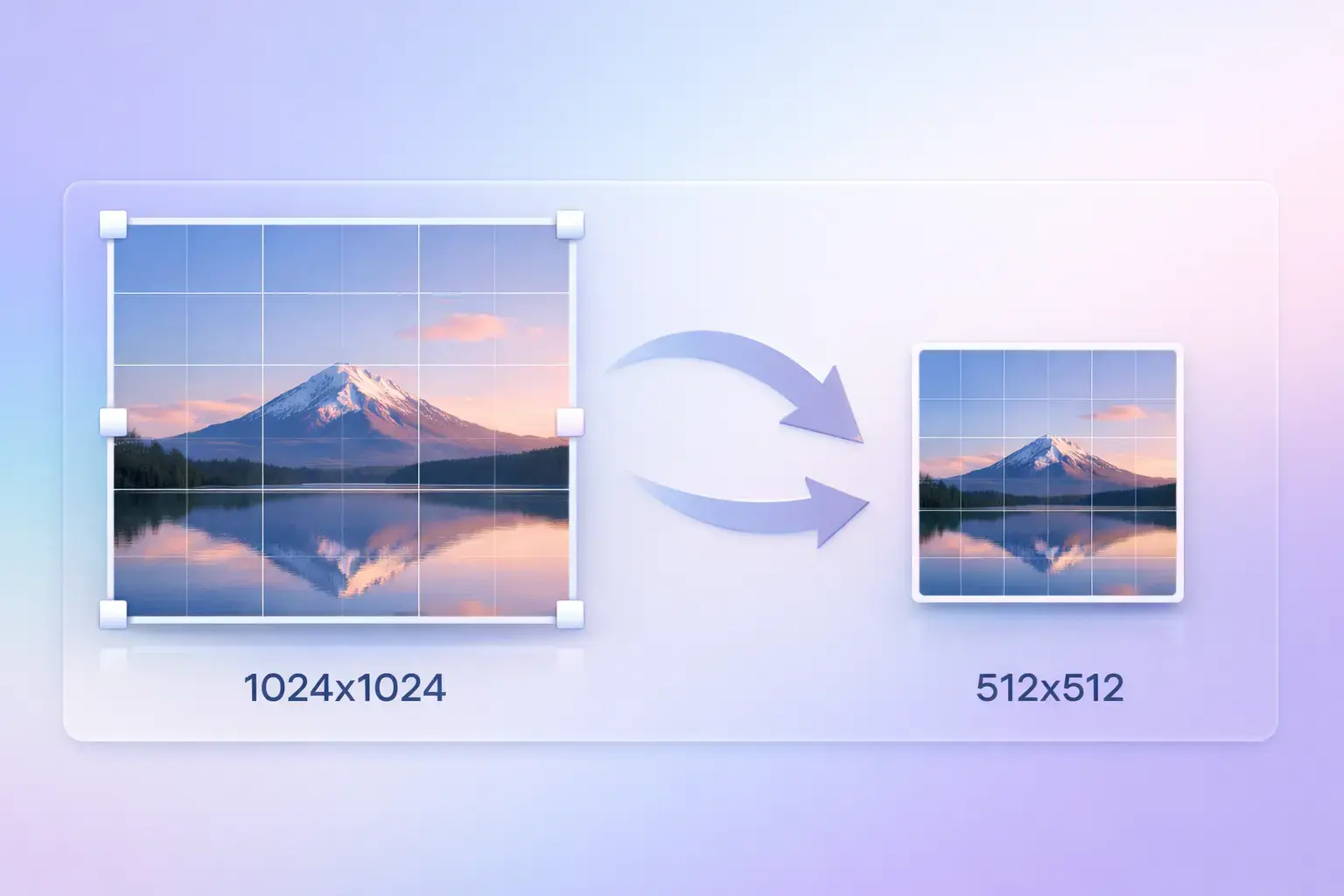
What Is Image Resizing?
Image resizing is the process of changing the pixel dimensions of a digital image — its width and height — to fit a specific display area, platform requirement, or file size target. When you resize image files, you are telling the image how many pixels wide and tall it should be, regardless of where it is displayed.
How an Image Resizer Works
An online image resizer uses interpolation algorithms to redistribute pixel data across a new canvas size. When you resize image dimensions downward, multiple source pixels are averaged into a single output pixel, preserving sharpness. TinyImagePro uses the HTML5 Canvas API with high-quality bicubic smoothing to produce clean results across all supported formats.
Resize Image vs Change File Size
Resizing and compressing are two separate operations. When you resize image files, you change pixel count — a 4000×3000 image resized to 1000×750 has 93% fewer pixels, which naturally produces a smaller file. Image compression, by contrast, keeps the pixel count the same but optimizes how the data is stored. For maximum size reduction, resize first to your target dimensions, then apply compression.
Why Resize Images Online?
Faster Website Loading
Serving a 5000×4000 image in a 600px-wide container forces browsers to download the full resolution and scale it in memory — wasting bandwidth. When you resize images to their actual display dimensions, page weight drops dramatically. A hero image resized from 8MB to 250KB can reduce page load time by seconds, directly improving Core Web Vitals, SEO rankings, and user retention.
Social Media Requirements
Every social platform enforces strict image dimension requirements. Instagram requires 1080×1080 for square posts, Facebook covers need 1640×624, and YouTube thumbnails must be 1280×720. Uploading the wrong size causes automatic cropping, blurry upscaling, or rejected uploads. Use an online image resizer to hit exact pixel targets before posting.
Email and File Upload Limits
Email clients render images at a maximum width of 600px. Attaching a 10MB image to an email increases send time, risks rejection by mail servers, and clogs recipients' inboxes. Many web platforms also enforce file size limits on uploads — resize image files first to pass validation reliably and keep emails light.
Print and Design Preparation
Print requires specific pixel dimensions based on DPI (dots per inch). An A4 page at 300 DPI needs 2480×3508 pixels. A business card at 300 DPI is 1051×600 pixels. Resizing images to exact print dimensions ensures that your final output is sharp at the intended physical size, without unexpected scaling by the print driver.
How to Resize an Image Online in 4 Steps
TinyImagePro makes it fast to resize images in your browser — no signup, no software download required. Here is how to resize image files in under a minute.
Upload Images
Drag & drop or click to select JPG, PNG, WebP, AVIF, BMP, or GIF files. Upload up to 20 images on desktop or 10 on mobile for batch resizing.
Set Dimensions
Choose By Pixels to enter exact width/height, or By Percentage to scale proportionally. Pick a preset or type custom values.
Preview Output
Review the original and target dimensions before resizing. The tool shows you exactly what pixel size each image will become.
Download
Download individual resized images or click "Download All as ZIP" to get all results in one package.
Upload Images
Drag & drop or click to select JPG, PNG, WebP, AVIF, BMP, or GIF. Up to 20 images on desktop or 10 on mobile for batch resize.
Set Dimensions
Choose By Pixels for exact width/height, or By Percentage for proportional scaling.
Preview Output
Check the original vs. target dimensions before processing.
Download
Download individual files or all results as a ZIP archive.
Supported Image Formats
Our image resizer supports all major raster image formats. Upload any of the following and resize image files in seconds, directly in your browser.
Most common photo format. Best for photographs, product images, and hero banners. JPEG has no transparency support — a white background is applied automatically on output.
Lossless format with full alpha channel support. Ideal for logos, icons, UI elements, and any graphic that needs a transparent background. Full transparency preserved on resize.
Modern format by Google with excellent size-to-quality ratio. Supports both lossy and lossless modes with transparency. Best choice for web images where file size matters.
Next-generation format with superior compression. Input is supported; output defaults to PNG for maximum browser compatibility during the resize process.
Uncompressed bitmap format used in legacy Windows applications. Input is supported; output defaults to PNG for a smaller, more compatible result.
Supports simple transparency and animation (static frame resized). Input is supported; output defaults to PNG. Use dedicated GIF tools for animated GIF resizing.
Common Image Dimensions for Every Platform
Use this quick reference to resize image files to exact platform requirements. Enter these dimensions directly into the image resizer above.
Social Media
- Instagram Post1080 × 1080
- Instagram Story1080 × 1920
- Instagram Landscape1080 × 566
- Facebook Cover1640 × 624
- Twitter / X Post1200 × 675
- LinkedIn Post1200 × 627
- YouTube Thumbnail1280 × 720
- Pinterest Pin1000 × 1500
- TikTok Cover1080 × 1920
Web & Blog
- Blog Featured Image1200 × 630
- Hero Banner1920 × 1080
- Thumbnail800 × 450
- Website Favicon32 × 32
- Open Graph Image1200 × 630
- App Icon (iOS)1024 × 1024
- App Icon (Android)512 × 512
- Product Image (Shopify)2048 × 2048
- Email Header600 × 200
- Email Body Image600 × 400
- Email Banner600 × 300
- Newsletter Hero600 × 338
- A4 at 300 DPI2480 × 3508
- Letter at 300 DPI2550 × 3300
- Business Card at 300 DPI1051 × 600
- Presentation Slide1920 × 1080
How to Resize Images Without Losing Quality
Follow these best practices to get the sharpest results every time you resize image files. The goal is to preserve as much detail as possible at your target dimensions.
Best Practices
- Always downscale from a high-resolution original
- Enable "Maintain aspect ratio" to prevent stretching
- Use pixel mode when you need exact dimensions
- Enable "Don't enlarge" to prevent blurry upscaling
- Keep original files — only export resized copies
- Resize to display dimensions, not larger
- Use PNG output for graphics with sharp edges
- Use JPG or WebP for photographs to save space
Common Mistakes
- Upscaling small images to large dimensions
- Resizing an already-resized (degraded) image
- Ignoring the display area and serving oversized images
- Disabling aspect ratio lock without a good reason
- Converting PNG logos to JPEG (loses transparency)
- Using percentage mode when exact pixels are needed
- Overwriting source files with resized versions
- Using 200% upscale on low-resolution screenshots
Resize vs Compress vs Crop: What Is the Difference?
These three image operations are often confused. Knowing which one you need helps you get the right result with the right tool.
Resize Image
Changes the pixel dimensions (width × height) of an image.
- •Modifies image width and height
- •Proportionally scales pixel count
- •Reduces file size by shrinking pixel area
- •Output fits a specific display area
Compress Image
Reduces file size by optimizing data encoding — dimensions unchanged.
- •Pixel dimensions stay the same
- •Reduces bytes via lossy or lossless algorithms
- •Image looks visually similar but weighs less
- •Essential for fast page loads
Crop Image
Removes parts of an image to isolate a subject or change composition.
- •Cuts away outer portions of the image
- •Changes aspect ratio by removing content
- •Focuses attention on a specific subject
- •Does not scale — only removes pixels
Image Resizer Use Cases
From e-commerce to web development, resizing images is a universal workflow task. Here are the most common scenarios where an online image resizer saves time.
E-Commerce
Resize product photos to consistent dimensions (e.g., 2048×2048 for Shopify) so your catalog grid looks uniform and professional. Batch resize entire product lines in one pass.
Social Media
Prepare images for Instagram, Facebook, Twitter, LinkedIn, and TikTok at their exact required pixel dimensions. No more platform-side cropping or blurry upscaling.
Web Development
Resize hero images, thumbnails, and blog illustrations to their CSS display size before deployment. Reduces page weight and improves Lighthouse performance scores.
Email Marketing
Resize headers and body images to 600px width for reliable email rendering. Smaller images load faster in inboxes and reduce the chance of emails landing in spam.
Print Design
Prepare images at the correct DPI-based pixel dimensions for flyers, business cards, posters, and book covers. Precise resize ensures sharp print output.
Mobile Apps
Generate app icons at multiple sizes (512×512, 1024×1024) and in-app images at device-appropriate dimensions for iOS and Android without installing Xcode or Android Studio.
Bulk Resize Images
Upload up to 20 images on desktop or 10 on mobile at once and apply identical resize settings to all. Perfect for teams preparing image batches for CMS uploads, product catalogues, or photo archives.
SEO Optimization
Reduce image weight to improve Core Web Vitals (LCP, CLS). Search engines reward faster pages with higher rankings. Resizing images to display dimensions is the first step.
Whether you need to resize image files for a single upload or process a batch of product photos, TinyImagePro delivers fast, accurate results in your browser. No server, no account, no limits — just a free online image resizer that works.
Image Resizer FAQs
Common questions about how to resize images online, supported formats, quality preservation, and batch processing.