PNG Size Reducer: Free Online Tool to Resize PNG Dimensions
Resize PNG images to any pixel dimensions — set exact width and height in pixels or scale by percentage. Maintain aspect ratio, preserve transparency. Common size presets available, batch processing supported. 100% free, no signup, processed entirely in your browser.
Drag & Drop PNG Images Here
or click to browse. PNG files only. Transparency preserved.
Up to 30 PNG images, max 20MB each
Related Image Tools
More powerful tools to optimize and manipulate your images
What Is a PNG Size Reducer?
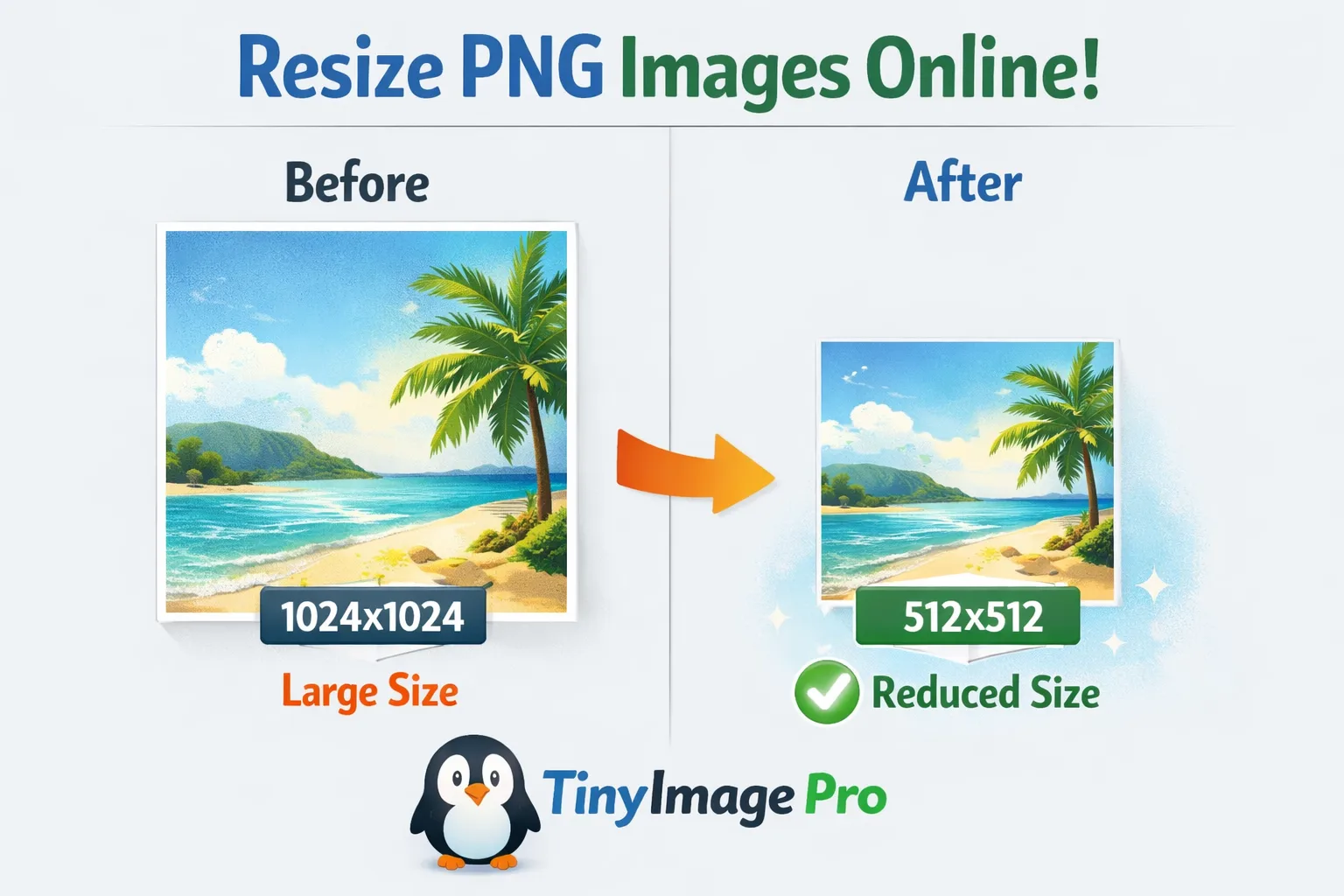
A PNG size reducer is an online tool that resizes PNG images by changing their pixel dimensions — for example, scaling a 2000×1500 image down to 800×600. Unlike file compressors that reduce data size without altering dimensions, a png size reducer changes the actual width and height of your image. This is essential when you need images at specific pixel dimensions for websites, social media, app icons, or email templates.
PNG images exported from design tools or cameras often have pixel dimensions far larger than needed. A logo designed at 4000×4000 pixels for print needs to be resized to 256×256 for a website favicon, or a screenshot at 2560×1440 needs to fit an 800×450 blog thumbnail. A png size reducer handles these dimension changes while preserving the transparency and sharp edges that make PNG the preferred format for graphics.
TinyImagePro is a free, browser-based png size reducer that resizes PNG dimensions entirely within your browser. Your files never leave your device, and there is no signup required. Set exact pixel dimensions or scale by percentage, maintain aspect ratio, preview the resized output, and download — all in one workflow.
Why You Need to Resize PNG Dimensions
Resizing PNG dimensions is a daily task for developers, designers, and content creators. Here are the key reasons to use a png size reducer before publishing or sharing images.
Social Media Requirements
Every social platform specifies exact image dimensions. Instagram posts require 1080×1080, Twitter headers need 1500×500, LinkedIn banners use 1584×396, and Facebook cover photos are 820×312. A png size reducer lets you hit these exact pixel dimensions in seconds, ensuring your graphics display correctly without cropping or distortion.
Web Performance
Serving a 4000×3000 PNG when the display area is only 800×600 wastes bandwidth and slows page loads. Browsers must download the full-resolution file and then scale it down for display. When you resize png images to their actual display dimensions using a png size reducer, pages load faster, Core Web Vitals improve, and users get a smoother experience.
Email and Messaging
Email clients and messaging platforms render images at fixed widths — typically 600px for email. Sending a 3000px-wide PNG forces the client to scale it down, increasing load time and data usage. Using a png size reducer to match the target display width ensures fast rendering and reliable display across all email clients.
Thumbnail Generation
Content management systems, e-commerce platforms, and media libraries require thumbnails at standardized sizes — 150×150, 300×300, or 512×512. A png size reducer with preset dimensions generates these thumbnails instantly from your full-resolution source images, preserving transparency for product images and logos.
How to Resize PNG Images Online in 4 Steps
Resizing PNG images with TinyImagePro takes under a minute. Here is how to use our free png size reducer to change PNG dimensions online.
Upload PNG files
Drag and drop your PNG images directly onto the upload area, or click to open the file browser. You can upload up to 20 images on desktop or 10 on mobile for batch resizing. The png size reducer accepts standard PNG files including those with full transparency and alpha channel data.
Set target dimensions
Choose between two resize modes. "By Pixels" lets you enter exact width and height values — use a preset like 512×512 or type custom dimensions. "By Percentage" scales the image proportionally — enter 50% to halve both dimensions. Enable aspect ratio lock to prevent distortion when changing one dimension.
Preview results
The png size reducer displays the original dimensions alongside the new target dimensions for each image. Check that the output matches your requirements before downloading. The preview shows both the original and resized versions so you can verify transparency and image quality.
Download resized files
Click the download button on any individual file, or use the "Download All as ZIP" button to collect all resized PNG images in one archive. Files retain their original names with the new dimensions applied, ready for immediate use.
Resize Modes: By Pixels vs By Percentage
TinyImagePro png size reducer offers two resize modes, and choosing the right one depends on whether you need exact dimensions or proportional scaling.
By
By Pixels mode lets you specify exact target width and height in pixels. This is the right choice when you have a specific dimension requirement — a 256×256 app icon, a 1920×1080 banner, or an 800×600 thumbnail. Common presets like 128×128, 512×512, and 1024×1024 are available with one click. With aspect ratio lock enabled, entering one dimension automatically calculates the other to prevent stretching or distortion.
By
By Percentage mode scales the image proportionally by a given factor. Enter 50% to reduce both width and height by half (a 2000×1600 image becomes 1000×800), or 25% for a quarter-size thumbnail. This mode is ideal when you need a proportional reduction without calculating exact pixel values. It works well for batch processing where all images need the same relative reduction.
Both modes in this png size reducer preserve full PNG transparency and alpha channel data. The "Don't enlarge" option prevents the tool from upscaling images beyond their original dimensions — if your source image is 400×300 and you set a target of 800×600, the image stays at 400×300. This avoids the blurry, pixelated results that come from enlarging raster images.
Understanding PNG Resize Quality
When you use a png size reducer to change image dimensions, understanding how resizing affects quality helps you get the best results.
Downscaling (reducing dimensions) generally produces excellent results. When a 2000×1500 PNG is resized to 800×600, the png size reducer uses interpolation algorithms to combine multiple source pixels into each output pixel. The result is a sharp, clean image at the smaller size. Detail visible at the original resolution may be lost, but the image looks crisp and well-defined at its new dimensions.
Upscaling (increasing dimensions) is where quality degrades. Enlarging a 200×200 PNG to 800×800 requires the algorithm to generate pixel data that does not exist in the original, resulting in blurry or pixelated output. This is why the "Don't enlarge" option exists — it prevents accidental upscaling. As a rule, always resize png images from larger to smaller dimensions for the best quality.
File size changes proportionally with dimensions. A PNG resized from 2000×1500 (3 million pixels) to 1000×750 (750,000 pixels) will have roughly 25% of the original pixel count. The resulting file size depends on image content, but typically a png size reducer that halves both dimensions produces a file 60–75% smaller than the original, simply because there are fewer pixels to store.
Preserving Transparency When Resizing PNG
PNG transparency is one of the main reasons designers choose this format for logos, icons, and UI graphics. When you use a png size reducer to change dimensions, preserving the alpha channel is critical. Every pixel in a PNG can have its own opacity level, from fully transparent to fully opaque, and this data must survive the resize operation intact.
TinyImagePro uses the HTML5 Canvas API to resize PNG images, which natively supports alpha channel rendering. Transparent backgrounds remain transparent, semi-transparent edges stay smooth, and complex opacity gradients are maintained accurately at the new dimensions. This is not a given with all png size reducer tools — some lower-quality tools flatten transparency by adding a white background during resize.
After resizing, always preview your PNG over different backgrounds to verify transparency is intact. This is especially important for logos and icons with fine semi-transparent edges, where resize interpolation can slightly alter edge opacity. The png size reducer preview lets you confirm the result before downloading.
PNG Size Reducer vs Image Compression
Resizing PNG dimensions and compressing PNG files are two distinct operations that serve different purposes. Understanding the difference helps you choose the right tool for your needs.
Dimension Resizing
A png size reducer changes the pixel width and height of an image. A 2000×1500 image resized to 800×600 has fewer pixels and therefore a smaller file, but the core purpose is fitting the image to a target display area. Use dimension resizing when your image is larger than where it will be displayed — web thumbnails, social media posts, email graphics, or app icons.
File Compression
An image compressor reduces the data size of an image without changing its pixel dimensions. A 2000×1500 image stays at 2000×1500, but the file size decreases through lossy or lossless compression techniques. Use file compression when you need the same dimensions but want smaller files for faster loading or storage savings.
When to Use Both
For optimal results, resize first, then compress. Use this png size reducer to scale your PNG to the exact display dimensions, then use a PNG compressor to further reduce the file size. A 4000×3000 PNG resized to 800×600 and then compressed can go from 8MB down to 50KB — a 99% reduction combining both approaches.
Best Practices for PNG Dimension Resizing
Getting the most out of a png size reducer requires following proven workflow practices. These tips help you resize png images effectively across different project types.
Know your target display size
Always resize to the exact pixel dimensions where the image will be displayed. Serving a 2000px image in a 400px container wastes bandwidth. Check your CSS, platform guidelines, or design specs for the required dimensions before using the png size reducer.
Use aspect ratio lock
Keep the aspect ratio lock enabled (the default) to prevent distortion. When you change the width, the height adjusts proportionally, and vice versa. Only disable aspect ratio lock when you intentionally need to stretch or squash an image to fit a specific non-proportional container.
Avoid upscaling
Never resize a PNG to dimensions larger than the original. Upscaling creates blurry, pixelated results because new pixel data must be invented. If you need a larger image, go back to the original source file or vector artwork. The "Don't enlarge" checkbox in the png size reducer prevents accidental upscaling.
Batch process for consistency
When resizing multiple images for the same context (product thumbnails, team photos, gallery images), use the same target dimensions across all files. The png size reducer supports batch upload of up to 20 images on desktop or 10 on mobile, applying identical settings to every file for consistent results.
Keep original files
Never overwrite your source PNG files. Store resized outputs in a separate folder and preserve the originals at full resolution. This allows you to resize again later for different platforms, update assets, or generate new dimension variants without quality loss from resizing already-resized images.
Common PNG Resize Dimensions by Use Case
| Use Case | Recommended Size | Aspect Ratio | Transparency |
|---|---|---|---|
| Website Favicon | 32×32 or 64×64 | 1:1 | ✓ Required |
| App Icon | 512×512 or 1024×1024 | 1:1 | ✓ Recommended |
| Social Media Post | 1080×1080 | 1:1 | ✗ Optional |
| Blog Thumbnail | 800×600 or 1200×630 | 4:3 / 1.91:1 | ✗ Optional |
| Email Header | 600×200 | 3:1 | ✓ Recommended |
Resizing vs Compression: Key Differences
| Feature | PNG Size Reducer (Resize) | PNG Compressor | Best Combined |
|---|---|---|---|
| Changes Dimensions | ✓ Yes (width × height) | ✗ No (same pixels) | ✓ Resize first |
| Reduces File Size | ✓ Proportional to pixels | ✓ Via data optimization | ✓ Maximum reduction |
| Transparency | ✓ Fully preserved | ✓ Fully preserved | ✓ Preserved |
| When to Use | Image too large for display | File too heavy for web | Both apply |
PNG Size Reducer FAQs
Common questions about how to resize PNG images, maintain aspect ratio, preserve transparency, and get the best results from our free PNG size reducer.