Making the song is no longer the slow part. AI music generators turn a short description or a page of lyrics into a finished track with vocals in a couple of minutes. What still trips people up is the release itself: a distributor rejects the artwork, the cover looks soft on a phone, or the YouTube thumbnail won't upload.
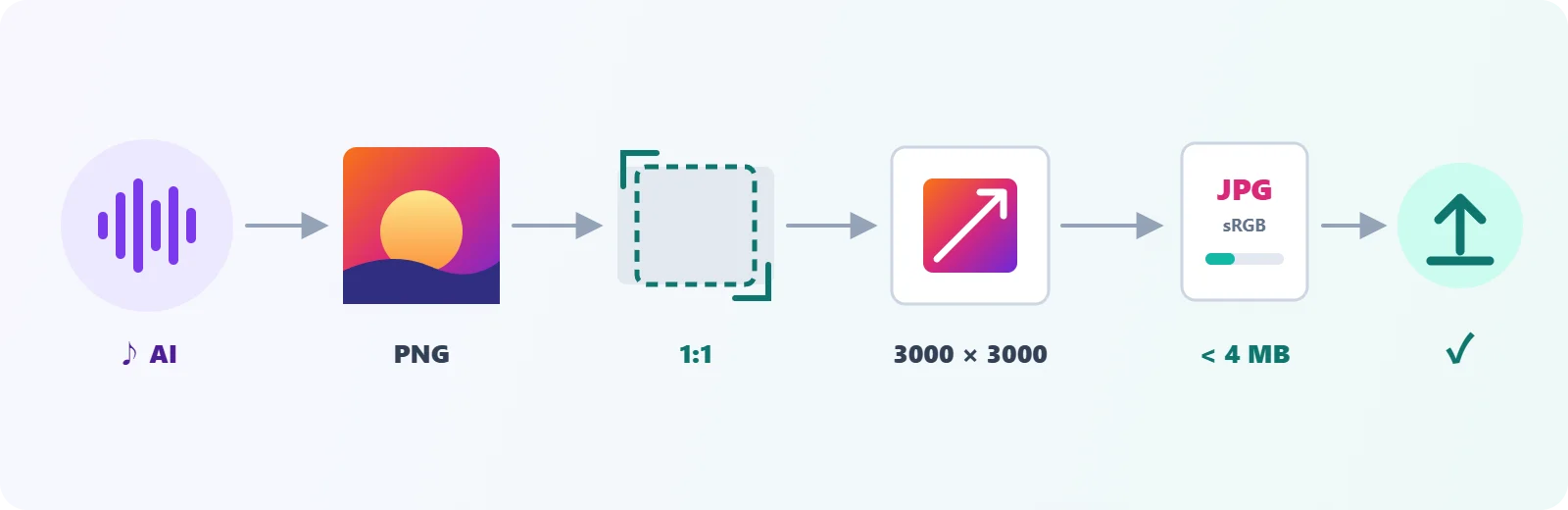
Almost every one of those problems is an image problem with a known fix. This guide walks through the whole path from a new AI song to artwork that streaming stores and YouTube accept the first time.
Step 1: Finish the Song First
Pick the track before you design anything. The mood of the final mix decides the artwork, and covers designed in advance tend to fit a song that changed along the way.
If you are starting from an idea rather than a recording, Tunora's AI music generator is the tool we use: you describe the genre, mood and subject, or paste your own lyrics marked up with [Verse], [Chorus] and [Bridge], and it returns two original tracks per prompt to choose from. It can also write the lyrics for you, make an instrumental with no vocals, and your first song is free when you sign up.
A few habits make the artwork step easier later:
- Settle the title now. Stores compare the text on the cover with the release title and artist name, so changing the title after the artwork is done means redoing it.
- Note the mood in three words. "Warm, late-night, lo-fi" is a better brief for a cover than the full lyrics.
- Keep the version you release. If you generate several takes, write down which one the artwork belongs to.
Step 2: Know the Sizes Before You Design
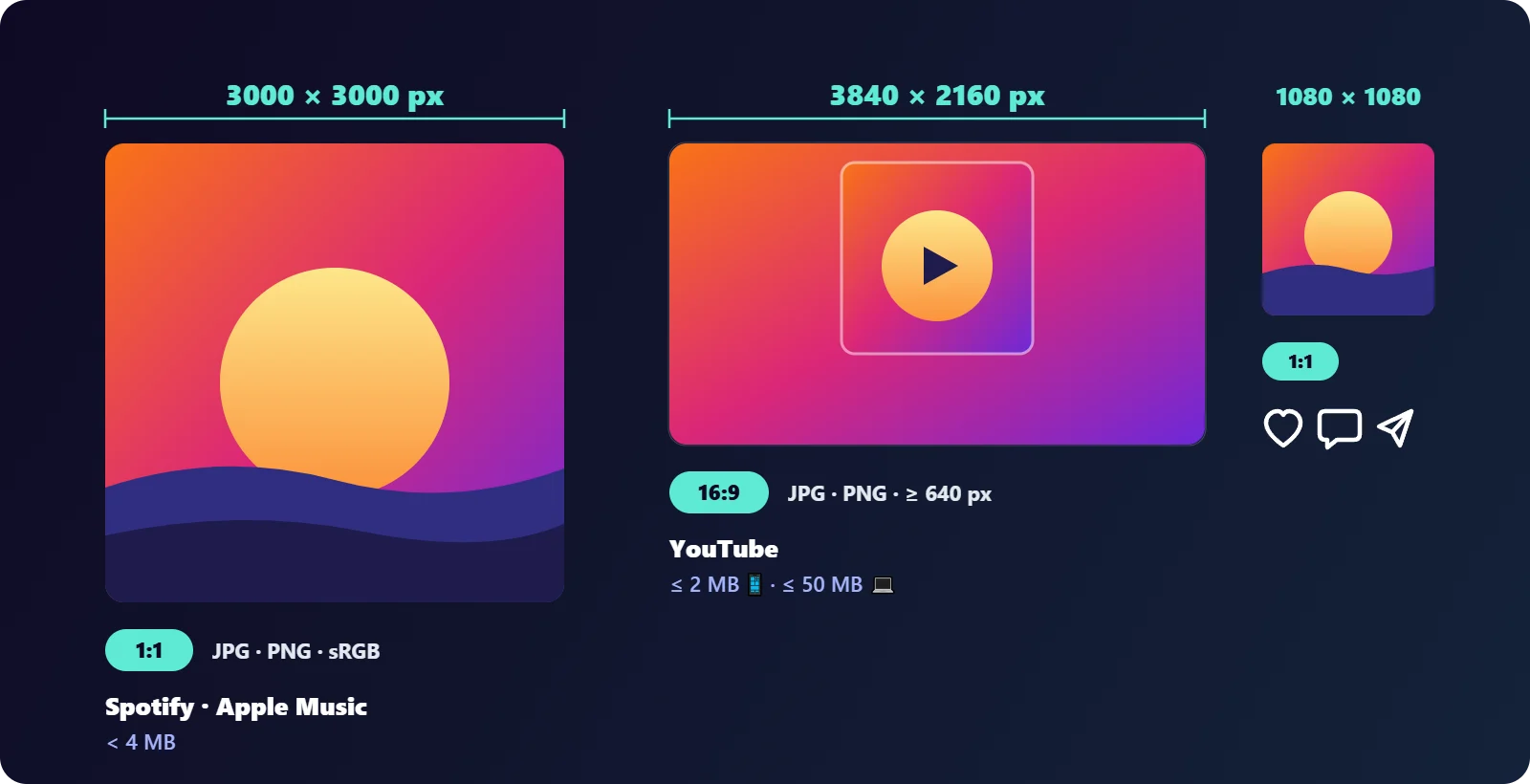
Artwork you design to the wrong shape has to be cropped or stretched later, and both show. These are the targets that matter for a single or an album release:
| Where it appears | Shape | Size to export | Notes |
|---|---|---|---|
| Spotify, Apple Music and other stores (via your distributor) | Square, 1:1 | 3000 × 3000 px | JPG or PNG, RGB (sRGB). File-size caps vary by distributor; under 4 MB is safe for the strictest ones |
| YouTube thumbnail for a music video or visualizer | 16:9 | 3840 × 2160 px recommended | At least 640 px wide. Up to 50 MB from a computer, 2 MB from the mobile app |
| Square social post announcing the release | 1:1 | 1080 × 1080 px | Reuse the cover, downsized |
Streaming stores don't take artwork directly from artists: you upload it to your distributor, which checks it against each store's rules and delivers it. That is why the exact file-size limit depends on which distributor you use. Check their artwork page once, then design to 3000 × 3000 and you are covered almost everywhere.
Step 3: Make a Square Image That Holds Up at 3000 Pixels
Start larger than you need, not smaller
Downscaling keeps detail; upscaling invents it. Many AI image generators produce around 1024 × 1024 pixels by default, which is too small to scale to 3000 × 3000 without looking soft. Generate at the highest resolution your image tool offers, or use a dedicated AI upscaler before you prepare the final file. Enlarging a small image in an ordinary resizer will meet the pixel requirement, but the blur shows on large screens.
Crop to 1:1 instead of squashing
If your artwork came out landscape or portrait, crop it to a square around the subject. Squashing a rectangle into a square distorts faces and lettering, and stores do reject stretched artwork.
Resize to exactly 3000 × 3000
Once the image is square and at least 3000 pixels on each side, resize it to exactly 3000 × 3000. Exact dimensions avoid the "artwork must be square" error that a 3000 × 2998 file can trigger.
Keep text readable at thumbnail size
The same artwork appears at around 60 pixels wide in playlists. Big, high-contrast lettering survives that; thin script fonts and small credits turn into noise. View your cover at the size of a fingernail before you export.
Step 4: Get the Format and File Size Right
A 3000 × 3000 image is 9 megapixels. Saved as PNG, photo-like artwork can easily run past 10 MB, which several distributors refuse.
- Use JPG for painted, photographic or AI-generated artwork. If your artwork is a PNG, convert it to JPG. At high quality, a JPG of the same picture is usually a fraction of the size with no visible difference.
- Use PNG only for flat, graphic designs with large areas of a single color and sharp edges, where JPG can show smudges.
- Export in RGB, never CMYK. CMYK files are a common reason for rejection, and their colors shift on screens anyway.
- Bring the file under your distributor's limit. Compress the JPG and keep the quality high, around 85–90; if you need a hard ceiling, compress it to 2 MB, which clears every limit we have seen.
Compression at these settings doesn't make artwork look worse at normal viewing sizes. The damage people remember comes from saving an already compressed JPG again and again, so always compress from your best original.
Step 5: Make a 16:9 Thumbnail for YouTube
A lyric video, a visualizer or a simple still-image upload needs a landscape thumbnail, and the square cover won't fill it. Two approaches work well:
- Extend the background. Place the square cover in the center of a 16:9 canvas and fill the sides with a blurred or color-matched version of the same image.
- Recompose. Reuse the main element of the cover with the title larger, since YouTube shows thumbnails small in search and on the home page.
YouTube's own help page currently recommends 3840 × 2160 pixels in 16:9, with a minimum width of 640 pixels. From a computer you can upload up to 50 MB, but the mobile app caps thumbnails at 2 MB, so a JPG under 2 MB works wherever you upload from.
Step 6: Clean Up Before You Upload
- Remove metadata from photos. If your artwork started as a photo from your phone, it may carry the location where it was taken. Strip the EXIF data before it goes public.
- Check the file name. A clear name such as
artist-title-cover-3000.jpgsaves confusion when a distributor asks you to replace the file. - Keep the master. Save the full-quality original separately from the compressed upload, so future edits start from the best version.
Common Reasons Artwork Gets Rejected
Distributors publish their own lists, but the same problems come up again and again:
- The image isn't square, or is smaller than the required size.
- It looks blurry or pixelated because a small image was enlarged.
- Text on the cover doesn't match the release title or artist name.
- It shows website addresses, social media handles, prices or store logos.
- The file is too large, in CMYK, or in an unsupported format.
Each of these takes a minute to fix before upload and can cost days if the release is sent back.
Frequently Asked Questions
What size should album cover art be?
Export it as a square 3000 × 3000 pixel image. That is the size distributors ask for when they deliver to Spotify, Apple Music and other stores, and smaller platforms simply scale it down.
Should cover art be JPG or PNG?
JPG for photographic, painted and AI-generated artwork, because it is much smaller at the same visual quality. PNG for flat graphic designs with sharp edges.
Can I use an AI-generated image as my cover?
Usually yes, but check two sets of rules: the terms of the image tool you used, and your distributor's artwork guidelines, which may have their own requirements for AI-generated content.
Why does my cover look blurry on Spotify?
The most common cause is a small source image enlarged to 3000 pixels. Start from a larger original, or upscale with a dedicated AI upscaler before exporting.
The Short Version
- Finish the song first, for example with Tunora, and lock the title.
- Design square and crop rather than squash.
- Resize to exactly 3000 × 3000 from a larger original.
- Export JPG in RGB and compress under your distributor's limit.
- Make a 16:9 YouTube thumbnail under 2 MB.
- Strip location data from photo-based artwork and keep the master file.
The song took minutes. With the artwork ready to the right specs, the release can go out just as quickly.