Some of the fastest-growing channels on YouTube and TikTok never show a face. Product walkthroughs, history explainers, real-estate tours, recipe slideshows — they're all built from the same two ingredients: a sequence of well-prepared images and a natural-sounding voiceover. No camera, no microphone, no on-screen talent.
The catch is that both ingredients are usually done badly. Blurry, mis-sized images get stretched to fit the frame, and robotic narration makes viewers click away in seconds. This guide covers the complete workflow for doing both right: preparing your images properly, generating narration that sounds human, and assembling a video people actually finish.
The Faceless Video Formula
Every narrated slideshow video has the same anatomy:
| Component | What it needs | Common mistake |
|---|---|---|
| Images | Correct dimensions, consistent style, fast-loading sources | Stretched or pixelated frames |
| Script | Conversational, written for the ear | Reading blog text verbatim |
| Voiceover | Natural pacing and intonation | Robotic monotone TTS |
| Assembly | Image timing matched to narration | Slides changing mid-sentence |
Get the first three right and the assembly step is almost mechanical. Let's go through them in order.
Step 1: Prepare Your Images for Video
Video platforms are unforgiving about image dimensions. An image that looks fine on a webpage becomes a blurry, letterboxed mess inside a 1080p frame.
Resize to the video frame
Decide your format first, then resize every image to match:
- YouTube / landscape: 1920×1080
- TikTok / Reels / Shorts: 1080×1920
- Square (feeds): 1080×1080
Resizing all images to identical dimensions before editing eliminates the stretched-frame problem entirely and makes timeline work dramatically faster.
Crop for composition
Source images rarely match your aspect ratio. Use a crop tool to frame each shot deliberately — keep the subject centered or on a rule-of-thirds line, and crop out watermarks, UI chrome, and dead space.
Compress before importing
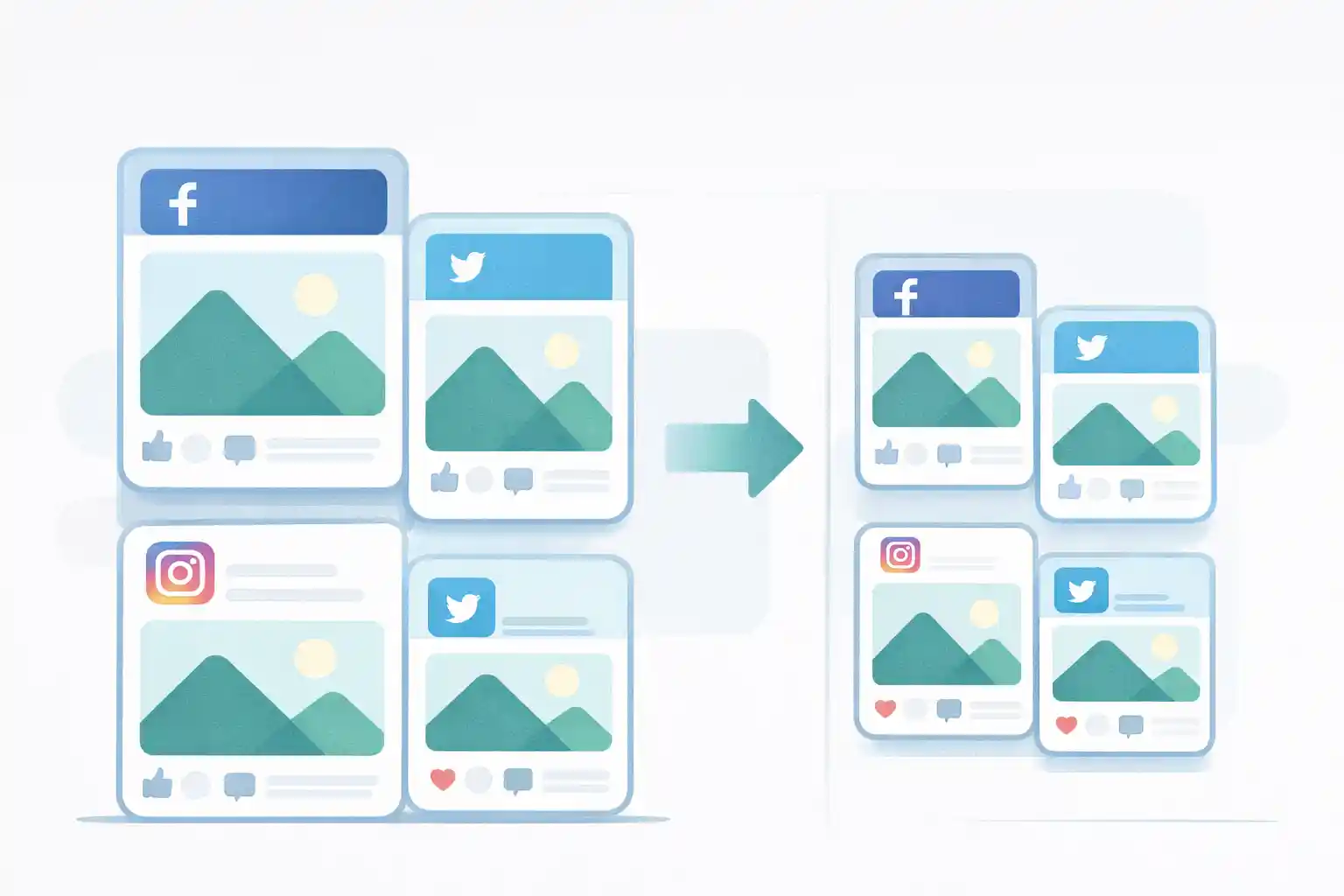
Video editors choke on folders of 8MB images, and cloud-based editors upload faster with smaller files. A pass through an image compressor cuts file sizes 70–90% with no visible difference at video resolution.
Protect and clean your visuals
Two steps creators skip until it bites them:
- If your slides contain other people's screenshots, faces, or personal data, blur the sensitive regions before publishing
- If you photographed anything yourself, strip the EXIF metadata — GPS coordinates have outed more than one "anonymous" channel
- Building a brand? Add a subtle watermark so reposted clips still point back to you
Step 2: Generate a Natural AI Voiceover
This is where most faceless videos live or die. Viewers forgive average visuals; they do not forgive robotic narration.
Modern AI text-to-speech has crossed the line where casual listeners can't tell it from a human read. We recommend AnySpeech — an AI voiceover platform built for exactly this workflow:
- Open anyspeech.io and paste your script
- Pick from 100+ AI voices across 50+ languages — preview until one matches your channel's tone
- Generate and download the narration as MP3
- Drop it into your video editor as the master audio track
A few features matter specifically for video creators:
- Long-form support — scripts up to 50,000 characters in one pass, so a 20-minute explainer doesn't need stitching
- Voice cloning — record 10–30 seconds of your own voice and narrate every video with it, without ever re-recording
- Multi-voice narration — assign different voices to different speakers for dialogue-style content
- Commercial usage rights included — safe for monetized channels
There's a free tier to test voices before committing, which is exactly how you should choose: generate the same paragraph with your top three voice candidates and listen on phone speakers — that's where your audience is.
Write for the ear, not the eye
Whatever tool reads your script, the script itself decides how human it sounds:
- Short sentences. Fifteen words or fewer. Long clauses sound synthetic in any voice.
- Contractions. "It's" and "don't" read as speech; "it is" and "do not" read as documentation.
- Punctuation is pacing. Commas and periods create pauses — use them where a human would breathe.
- Read it aloud once yourself. Anywhere you stumble, the AI voice will too.
Step 3: Assemble and Time the Video
With optimized images and a finished voiceover, assembly takes minutes in any editor (CapCut, DaVinci Resolve, Canva, or your platform's built-in tool):
- Import the MP3 narration first — it defines the total length
- Lay images on the timeline, cutting on sentence boundaries, not on a fixed timer
- Hold each image 4–8 seconds; anything longer needs slow zoom or pan movement (the "Ken Burns" effect) to stay alive
- Add captions — the majority of mobile viewers watch with sound off at first, and captions pull them into turning sound on
Export checklist
- ✅ Resolution matches your image prep (1080p minimum)
- ✅ Audio peaks around −3dB — AI narration is clean, so don't bury it under loud music
- ✅ First 3 seconds show your strongest image — that's the scroll-stopping window
- ✅ Thumbnail exported separately and compressed for fast loading
Frequently Asked Questions
Do faceless videos actually perform well?
Yes — explainers, listicles, tutorials, and story-narration channels routinely reach millions of views without a face on screen. Platforms rank watch time and retention, not whether a human appears.
Can AI voiceovers be monetized?
Check your tool's license. AnySpeech includes commercial usage rights, which covers monetized YouTube channels, client work, and ads. Platform-side, YouTube's policies target low-effort automated content — AI narration over original, edited visuals with a real script is fine.
How many images do I need per minute of video?
At 4–8 seconds per slide, plan on 8–15 images per minute. A 5-minute video needs 40–75 prepared images — which is exactly why batch resizing and compression matter so much in this workflow.
What image format should I use for video editing?
JPG or PNG both work in every editor. Use PNG for screenshots and text-heavy slides (sharper edges), JPG for photos (smaller files). If your sources are WebP, convert WebP to JPG first — some desktop editors still reject WebP imports.
Can I make videos in languages I don't speak?
This is one of AI narration's biggest unlocks. Translate your script, generate the voiceover in any of 50+ languages with a native-sounding voice, and reuse the same visuals — one set of images becomes ten localized videos.
Wrapping Up
The faceless video pipeline is three deliberate steps:
- Prepare images — resize to the exact frame, crop for composition, compress for fast editing, and clean up metadata and sensitive regions
- Generate narration — write a spoken-style script and turn it into a natural voiceover with anyspeech.io
- Assemble — cut images on sentence boundaries, caption everything, hook in the first 3 seconds
No camera, no microphone — just well-prepared images and a voice that sounds like it cares. That's the entire production stack.