圖片壓縮 - 免費線上工具

即時壓縮圖片,無檔案大小限制。在保持品質的同時減小圖片檔案大小。

1M+
Images Compressed
75%
Average Size Reduction
100%
Privacy Protected
Unlimited Use

Why Choose TinyImagePro?

FeatureTinyImageProOther Online ToolsDesktop Software
Processing SpeedInstantSlow (upload delay)Fast
Compression QualityExcellentAverageGood
Privacy & Security🔒 100% LocalServer UploadLocal
Price💯 Free ForeverLimited/Freemium$29-99
Installation RequiredNoNoYes
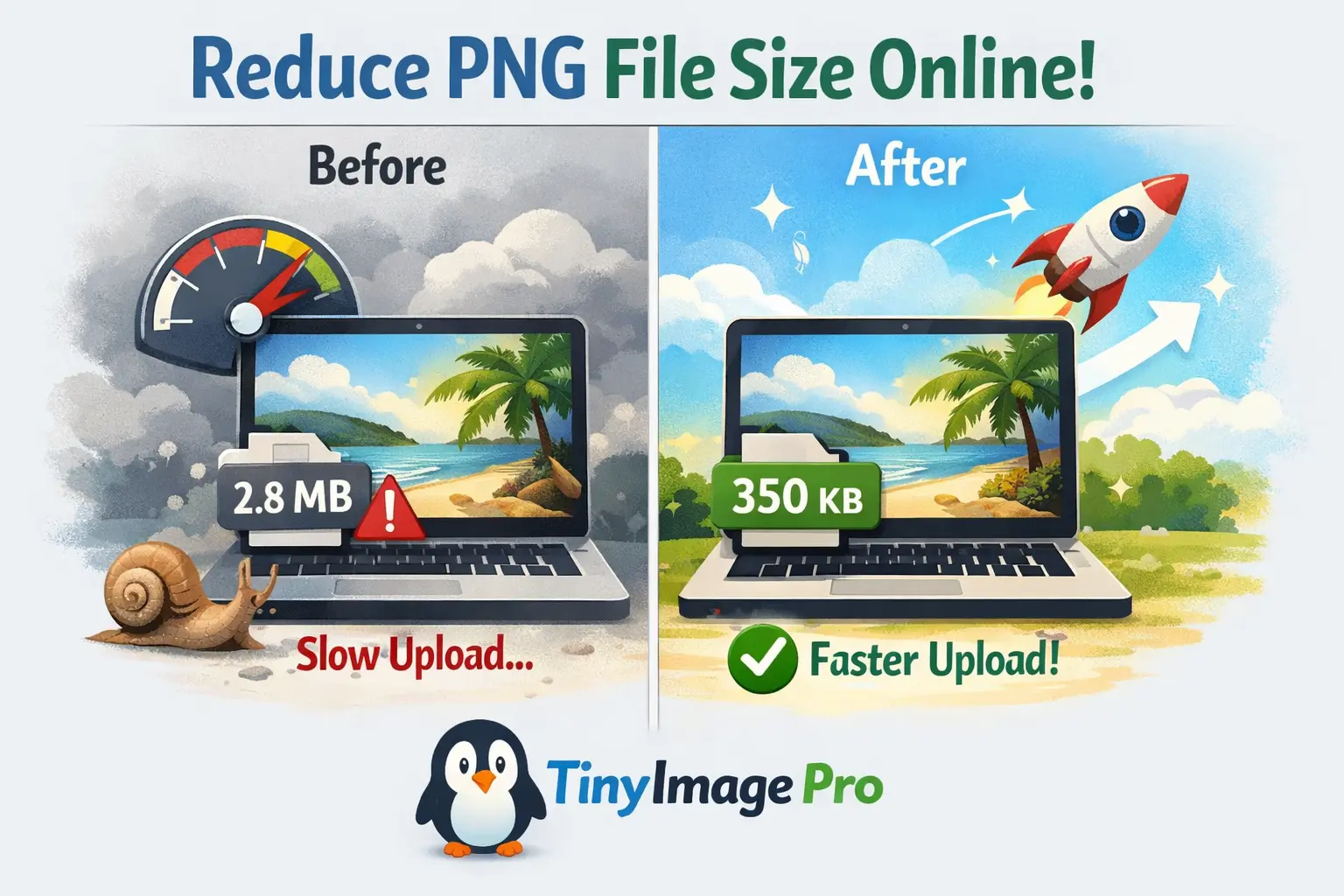
Before and after image compression comparison - reduce PNG file size from 2.8MB to 350KB with TinyImagePro

What is Image Compression?

Image compression is the process of reducing the file size of an image while preserving its visual quality. When you compress images, you're essentially removing unnecessary data from the image file without significantly affecting how it looks. This process is crucial for anyone who works with digital images, whether you're a web developer, photographer, or content creator.

Lossy vs Lossless Compression

There are two main types of image compression: lossy and lossless. Lossy compression removes some data permanently to achieve smaller file sizes — ideal for web images where slight quality trade-offs are acceptable. Lossless compression reduces file size without any quality loss, making it perfect for archival and professional use.

Our image compress tool intelligently applies the best compression method based on your selected quality settings, ensuring you get the perfect balance between file size and image quality.

How Compression Algorithms Work

Compression algorithms analyze image data to identify patterns and redundancies. They remove metadata, reduce color depth, and merge similar pixel regions to shrink file sizes. Advanced algorithms like those used in WebP and AVIF achieve even greater reductions by leveraging modern encoding techniques.

Why You Need to Compress Images

In today's digital landscape, the need to compress image files has never been more critical. Large image files can significantly slow down your website loading speed, negatively impacting user experience and SEO rankings. When you compress image size, you're not just saving storage space — you're improving your entire digital presence.

Faster Website Loading Speed

Website performance is directly tied to image file sizes. Studies show that 53% of mobile users abandon websites that take longer than 3 seconds to load. By using tools to minimize photo size, you can dramatically improve page load times, reduce bandwidth costs, and enhance user engagement. For e-commerce sites, this translates to higher conversion rates and increased revenue.

Better SEO Rankings

Search engines like Google use page speed as a ranking factor. Optimized images contribute to faster Core Web Vitals scores, which directly influence your search visibility. When you compress images on your website, you're giving your pages a competitive edge in search results.

Save Storage and Bandwidth

Compressed images are easier to share via email, social media, and messaging apps. When you compress images before uploading them to cloud storage services, you save valuable storage space and reduce upload times. Mobile users especially benefit from compressed images as they consume less data, making browsing more affordable and faster on cellular networks.

How to Compress an Image Online

Learning how to compress an image online is straightforward with TinyImagePro. Our free tool makes it incredibly easy to reduce image file sizes without requiring any technical expertise or software installation. Here's a step-by-step guide on how to compress images using our platform:

  1. 1
    Upload Your Images:

    Drag and drop your images into the upload area, or click to browse your files. You can upload up to 20 images on desktop or 10 on mobile, with each file up to 20MB in size.

  2. 2
    Adjust Compression Settings:

    Choose your desired quality level using the slider (we recommend 80% for the best balance) and select your output format (JPEG, PNG, or WebP).

  3. 3
    Automatic Compression:

    Our tool automatically processes your images using advanced compression algorithms. The process happens instantly in your browser—no server uploads required.

  4. 4
    Download Compressed Images:

    Preview your compressed images to compare quality, then download them individually or as a ZIP file for batch downloads.

The entire process takes just seconds, and you'll immediately see the size reduction percentage for each image. This transparent approach helps you understand exactly how to compress an image effectively while maintaining the quality you need for your specific use case.

Different Ways to Compress Images

There are multiple methods available when you want to compress file sizes for images. Understanding these different approaches helps you choose the right tool for your needs.

Online Compression Tools

Online tools, like our jpeg file compressor, offer the perfect balance of convenience and power. They're accessible from any device, require no installation, and process files directly in your browser for maximum privacy. Unlike many alternatives, TinyImagePro doesn't upload your images to a server — everything happens locally on your device, ensuring your photos remain completely private and secure.

Desktop Software

Desktop software like Photoshop and GIMP offers advanced compression options with fine-grained control over output quality. However, they require installation, technical knowledge, and often come with a price tag. These tools are best suited for professionals who need pixel-level control over their compression workflow.

Choosing the Right Method

When choosing how to compress images, consider factors like batch processing capabilities, supported formats, quality control options, and privacy. Our tool excels in all these areas, supporting JPEG, PNG, WebP, and AVIF formats with granular quality control. Whether you need to compress file sizes for a single photo or process dozens of images simultaneously, our platform handles it efficiently.

Benefits of Using TinyImagePro Image Compress Tool

TinyImagePro stands out as the premier choice when you need to compress image files quickly and effectively. Our image compress tool is designed with user experience and efficiency in mind, offering several key advantages over competing solutions.

🚀 Lightning-Fast Processing

Client-side compression means instant results without server delays or upload times.

🔒 Complete Privacy

Your images never leave your device, ensuring maximum security and confidentiality.

💯 100% Free Forever

No hidden costs, subscriptions, or premium tiers—all features are completely free.

📱 Mobile-Friendly

Fully optimized for smartphones and tablets with touch-friendly controls.

🎯 No File Limits

Compress images up to 20MB each with no daily limits or restrictions.

🎨 Multiple Formats

Support for JPEG, PNG, WebP, and AVIF with format conversion options.

Whether you're a professional photographer managing large image libraries, a web developer optimizing website assets, or a casual user sharing photos online, TinyImagePro provides the tools you need to compress images effectively without compromising quality.

Best Practices for Image Compression

To get the most out of your image compression efforts and truly understand how do i compress an image optimally, follow these industry-proven best practices.

Choose the Right Output Format

Start by choosing the right output format: JPEG works best for photographs and complex images, PNG is ideal for graphics with transparency, and WebP offers superior compression for modern websites. Matching the format to your content type can reduce file sizes by an additional 20-40%.

Always Work from High-Quality Sources

When you compress images, always work from the highest quality source available. Compressing an already-compressed image leads to further quality degradation. Save your original files before compression so you can always return to the source if needed. For web use, target a quality setting of 75-85% for JPEGs, which provides excellent visual quality while achieving substantial file size reductions.

Match Compression to Your Use Case

Consider your specific use case when determining compression levels. Social media images can handle more aggressive compression since they're typically viewed on small screens. Print materials require higher quality settings to maintain clarity at larger sizes. E-commerce product photos should balance file size with detail preservation to showcase products effectively while maintaining fast page loads.

Batch Process for Efficiency

Batch processing is your friend when dealing with multiple images. Rather than compressing images one by one, upload several at once to save time. Use consistent settings across similar image types to maintain visual consistency across your website or project. Regularly audit your image library to identify opportunities for further optimization.

Common Questions About Compressing Images

Here are answers to the most frequently asked questions about image compression and how to get the best results.

Can I Compress Images Without Losing Quality?

Many users wonder about how to compress image files without losing quality. The key is finding the right balance — some quality loss is inevitable with lossy compression, but with proper settings, this loss is imperceptible to the human eye. Our tool's default 80% quality setting strikes this balance perfectly for most use cases.

How to Compress Photos for Different Platforms

Another common question is about how to decrease photo file size for specific platforms. Email clients typically limit attachments to 25MB, making compression essential for sharing multiple photos. Social media platforms automatically compress uploaded images, but pre-compressing them gives you better control over the final quality. Cloud storage services benefit from compressed images as they reduce storage costs and sync times.

When to Use Lossy vs Lossless Compression

Understanding when to use different compression methods is crucial. Lossless compression works best for archival purposes where perfect quality preservation is paramount. Lossy compression is ideal for web use, social sharing, and situations where slight quality reductions are acceptable in exchange for dramatically smaller file sizes. Our image compress tool automatically applies the most appropriate compression method based on your selected format and quality settings.

Is Online Image Compression Safe?

Security-conscious users often ask whether online compression tools are safe. TinyImagePro processes all images directly in your browser using WebAssembly technology. Your images never touch our servers, eliminating privacy concerns. This client-side approach also means faster processing and no upload time, making it both more secure and more efficient than traditional server-based compression tools.

Start Compressing Images Today

Now that you understand the importance and methods of image compression, it's time to put this knowledge into practice. TinyImagePro makes it effortless to compress image files while maintaining the quality your projects deserve.

Whether you're optimizing website performance, preparing images for email, or managing storage space, our free image compress tool provides professional-grade results in seconds. Join thousands of users who trust TinyImagePro for their daily image compression needs.

常見問題

關於圖片壓縮您需要了解的一切

是的,TinyImagePro完全免費,沒有隱藏費用、訂閱或高階功能。您可以無限制地壓縮無限數量的圖片。
我們支援JPEG/JPG、PNG、WebP和AVIF格式。您還可以在壓縮過程中在這些格式之間轉換。
您可以在桌面端壓縮每張最大20MB的圖片,在移動裝置上最大5MB。您可以在桌面端一次處理最多20張圖片,移動端最多10張。
我們的工具使用先進的演算法透過刪除不必要的後設資料和最佳化圖片資料來減小檔案大小。所有處理都在您的瀏覽器中進行,以獲得最大的隱私和速度。
有失真壓縮的輕微品質降低是正常的,但在我們推薦的80%品質設定下,對大多數使用者來說差異是難以察覺的。您可以完全控制壓縮級別。
是的,您可以在桌面端一次上傳和壓縮最多20張圖片,移動端最多10張。壓縮後,您可以單獨下載它們或作為單個ZIP檔案下載。
絕對安全。所有壓縮都直接在您的瀏覽器中進行——您的圖片永遠不會離開您的裝置或接觸我們的伺服器。這確保了完全的隱私和安全。
有失真壓縮透過永久刪除一些資料來減小檔案大小,導致檔案更小但品質略有損失。無失真壓縮保留所有資料但實現的檔案大小減少較小。
壓縮比通常在40-80%之間,具體取決於原始圖片和品質設定。我們的工具會顯示每張圖片的確切大小減少量。
是的,我們的工具完全最佳化適用於移動裝置,具有觸控友好的控制元件和響應式介面。移動使用者每張圖片的檔案大小限制為5MB。