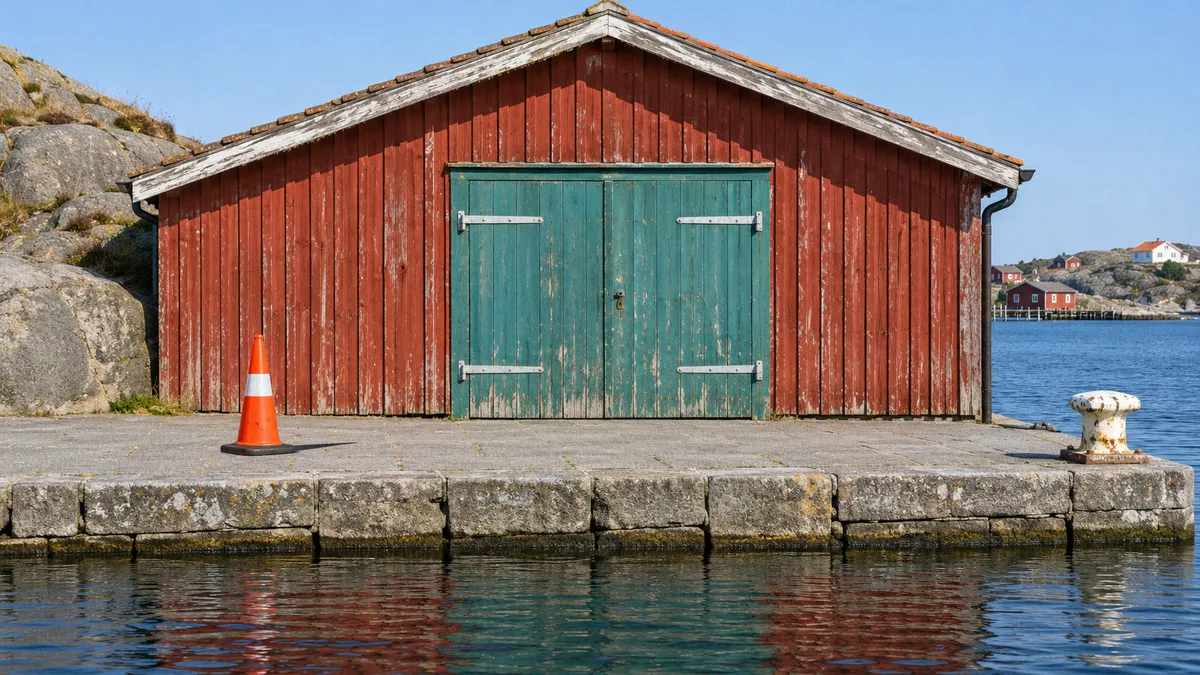
In this harbor scene, the bright orange cone catches the eye before the teal boathouse doors. You could trim it off the left, but that would also cut into the roof and take a chunk out of the waterfront. The cone is small enough to edit in place. We generated the harbor scene and its comparison for this walkthrough.
Decide how much of the frame to keep
Try a rough crop on a copy. If the distraction sits against the edge and the subject still has room, that may be the whole edit. In this scene the cone overlaps two surfaces. Its tip covers the vertical red boards, while its base and short shadow sit on the paving. Those two textures tell you what the editor needs to reconstruct.
Give the editor one specific job
Open the AnyVisual image-to-image editor, sign in, and add your photo as a JPG, PNG, or WebP. Choose Remove object, then describe the object, its position and the surfaces behind it. For the harbor image, try this prompt.
Remove the orange cone to the left of the teal doors, its short shadow on the paving, and its orange reflection in the water. Continue the vertical red boards and the gray paving joints through that spot. Keep the full frame, door hinges and white mooring bollard in place.
Generate one version and open it beside the original at the same zoom. If a hinge moves or the roofline bends, start again from the original with a narrower instruction. An edit applied to the altered version can carry the mistake forward.
Inspect the repair before you export
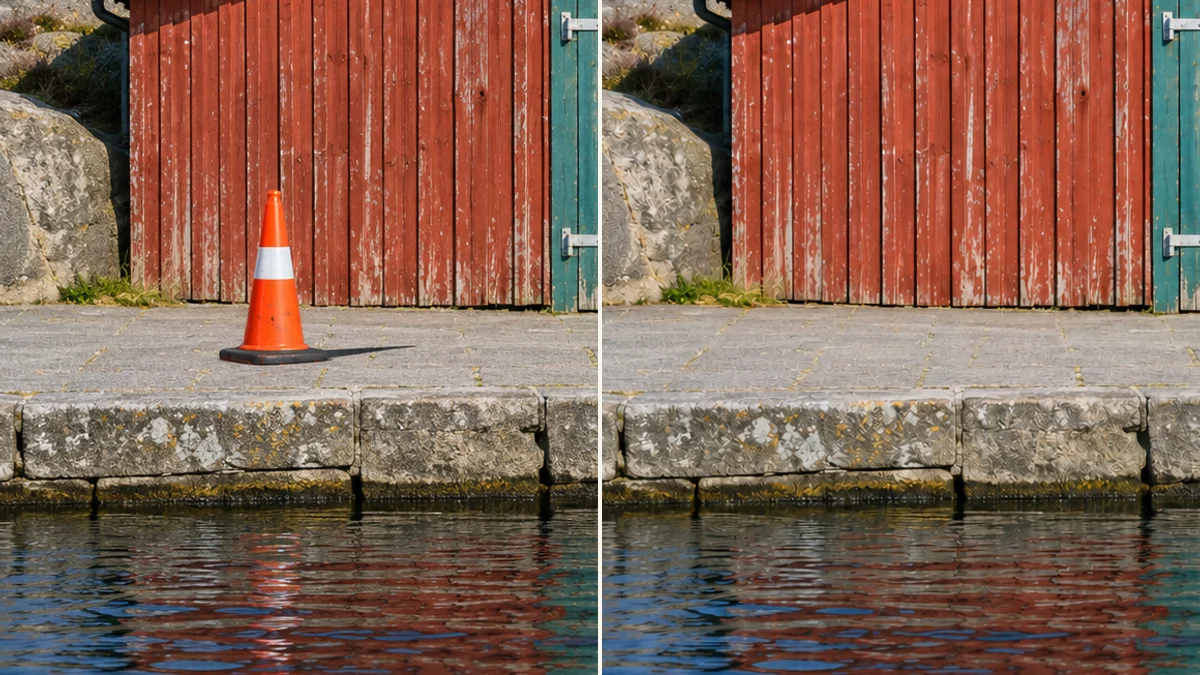
At 100% zoom, follow a board seam down to the paving. Check for a sudden kink, a repeated knot or the dark oval of a shadow with nothing casting it. Then look below the stone edge. A streak of bright orange in the water can give the cone away even when the paving looks convincing.
Finally, look at the full photo at the size you'll share it. Keep the original and the full-size edit as separate files. If your album displays photos at 1200 pixels wide, resize a sharing copy to that width with the aspect ratio locked. Reopen that copy and check that the thin silver hinges still read against the doors.